Celldega-App
Celldega-App lets you explore prepared spatial and single-cell data on your desktop. Open a local or remote dataset, compare a Landscape with its linked Clustergram, or inspect cell portraits in a Yearbook. Viewing gallery examples and saved Clustergrams needs no notebook or Python installation.
The current build is 0.7.1 (released November 3, 2026), using Celldega 0.28 alpha 4. Download the latest build.
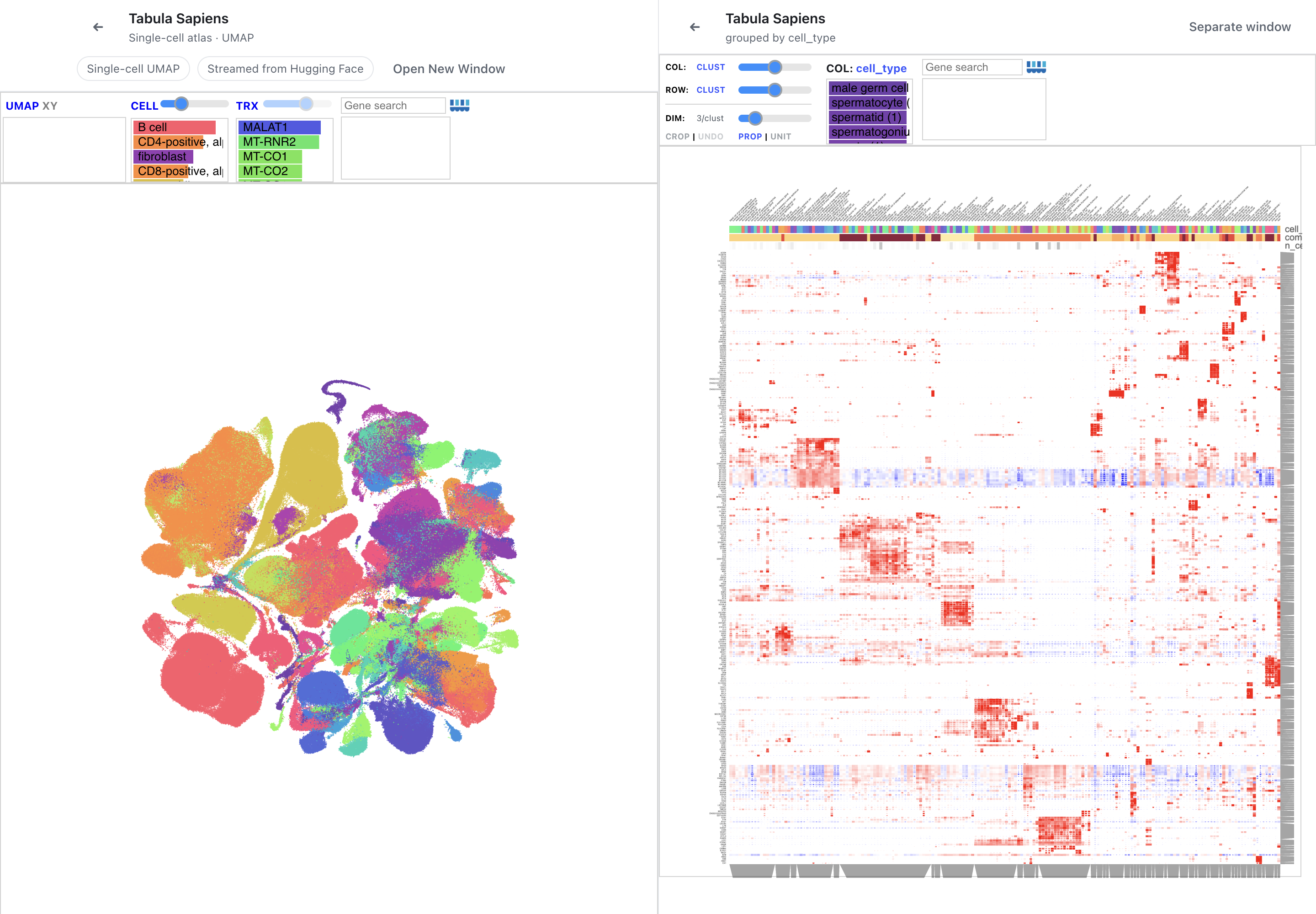
Tabula Sapiens in one window: selecting a gene or cell-type column in the Clustergram updates the UMAP. Use Separate window when you want more space for the Clustergram while retaining linked selections.
Download and install
Choose an installer from the current release:
| Platform | 0.7.1 download |
|---|---|
| macOS, Apple Silicon and Intel | Universal DMG |
| Windows | Windows installer |
See the app's installation instructions for platform details, or the latest release page for subsequent builds and available installers.
Try a gallery dataset
- Open Celldega-App and choose Atera Kidney to explore cells in tissue.
- Choose Tabula Sapiens for the atlas UMAP, or its linked example for the UMAP and cell-type marker Clustergram together.
- Search for a gene or select a cell-type column to explore the relationship between the cells and expression patterns.
These examples stream prepared data from GitHub or Hugging Face. The first load may take a moment while metadata and visualization data arrive.
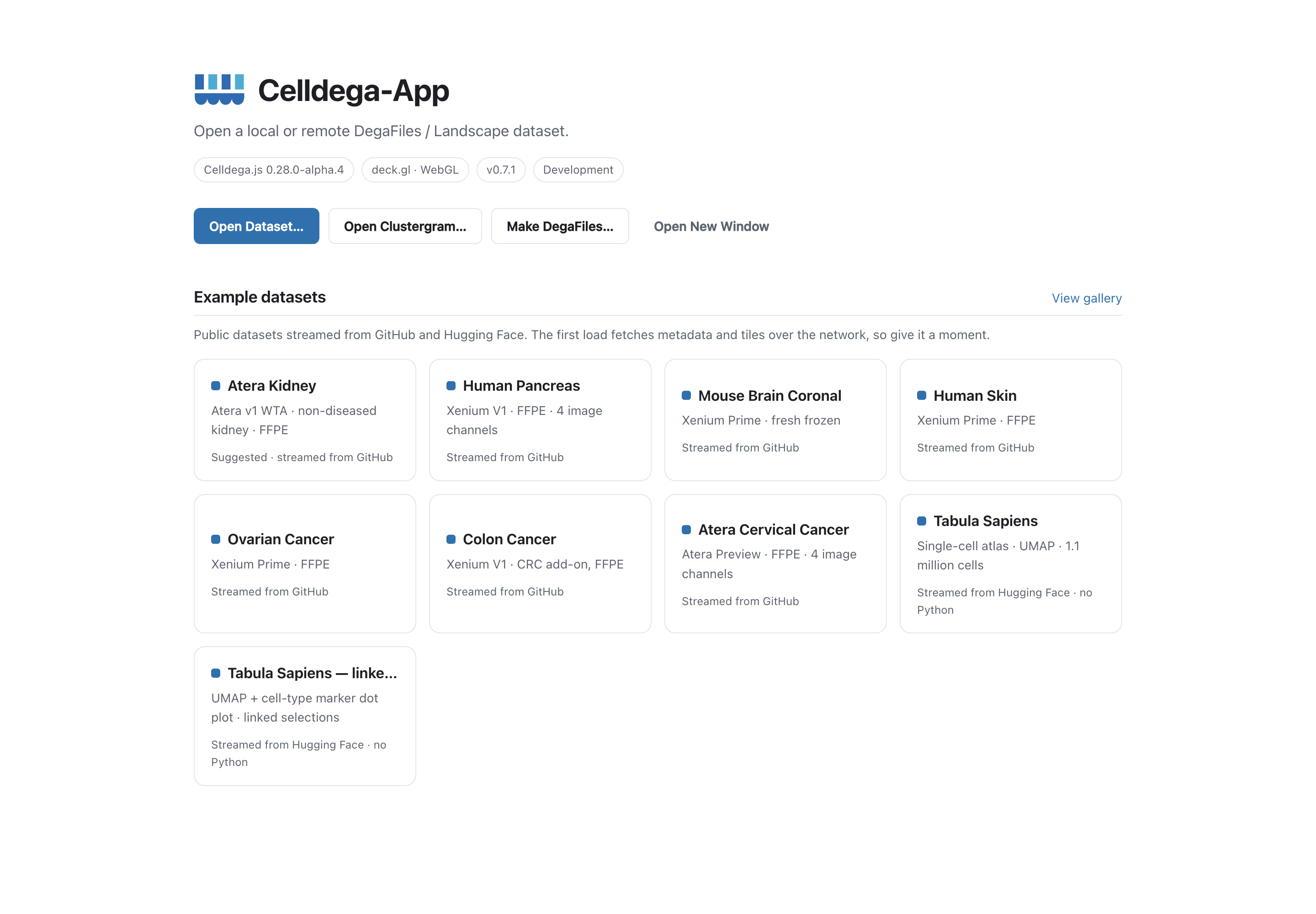
The start screen provides public examples, Open Dataset…, Open Clustergram…, and Make DegaFiles….
Open your own dataset
Choose Open Dataset… and select a local DegaFiles directory or enter its
remote HTTP(S) URL. The directory should contain landscape_parameters.json;
see DegaFiles preparation and hosting.
Optionally attach an analyzed AnnData .h5ad to use its cell annotations or
generate a grouped-expression Clustergram.
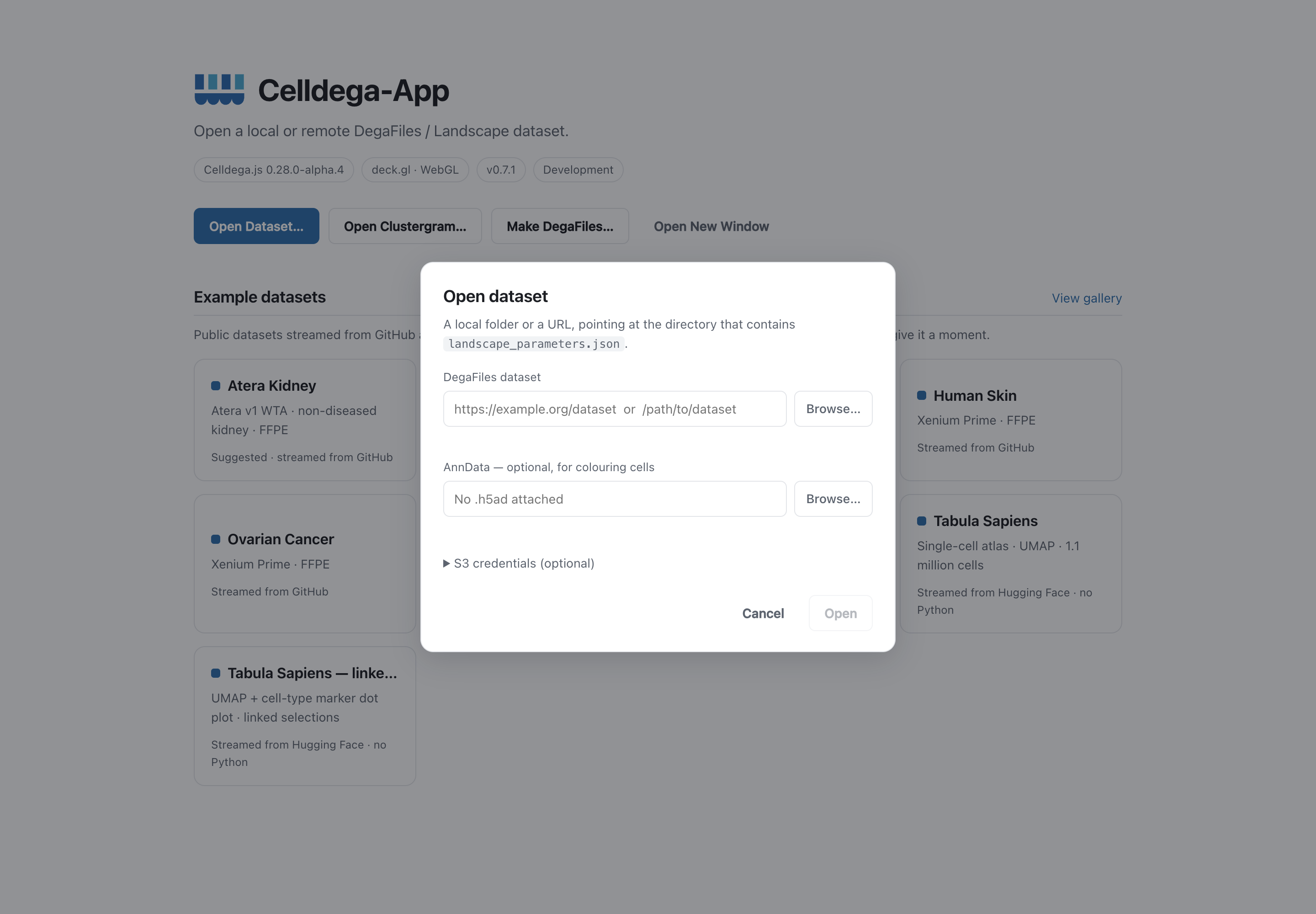
Use Browse… for a local directory or AnnData file, or paste the prepared dataset's remote URL.
Generate and save a Clustergram
With an AnnData attached, choose Clustergram… and select Linked in this window or Clustergram in a separate window. The app offers to provision its matching Python analysis runtime when needed. Use File → Analysis Runtime… to set it up or rebuild an older runtime. Make DegaFiles… also uses that runtime to prepare raw Xenium or MERSCOPE output.
Generated results appear under Saved Clustergrams and can be reopened after quitting without rerunning the analysis. Save Matrix… exports the complete Matrix Zarr folder, and Open Clustergram… opens a saved folder. The saved object retains matrix values, dot sizes, metadata, colors, dendrograms, and precomputed views; see Matrix storage. Browser zoom, crops, and unsaved manual edits are not a saved session snapshot.
The app covers 2D spatial and UMAP/XY Landscapes, Clustergrams, and Yearbooks. For 3D spatial views, use the notebook CellCloud or NeighborhoodCloud guides.
Screenshot and data sources
These original app screenshots were captured on macOS on November 3, 2026, using app 0.7.1 and Celldega.js 0.28.0-alpha.4. The Development badge identifies the clean source profile used for the captures. The image links are pinned to that revision; capture metadata records their versions and dimensions.
Tabula Sapiens data are from the Tabula Sapiens Consortium, distributed via CZ CELLxGENE Discover under CC BY 4.0. See the Tabula Sapiens gallery for the dataset version, processing notes, and publication citation.