Day 1, Exercise 1: Introduction to Fiji#
Lab authors: Erin Weisbart
Learning Objectives#
Be introduced to Fiji
Practice opening images in Fiji and exploring some of their properties
Practice applying filters to an image in Fiji
Preparation#
Prior to this exercise, you should have downloaded Fiji and the Beginner Segmentation image set.
Warning#
As we are using this same image set in future exercises, please do not save any changes to the original images.
Open an image in Fiji#
Open Fiji.
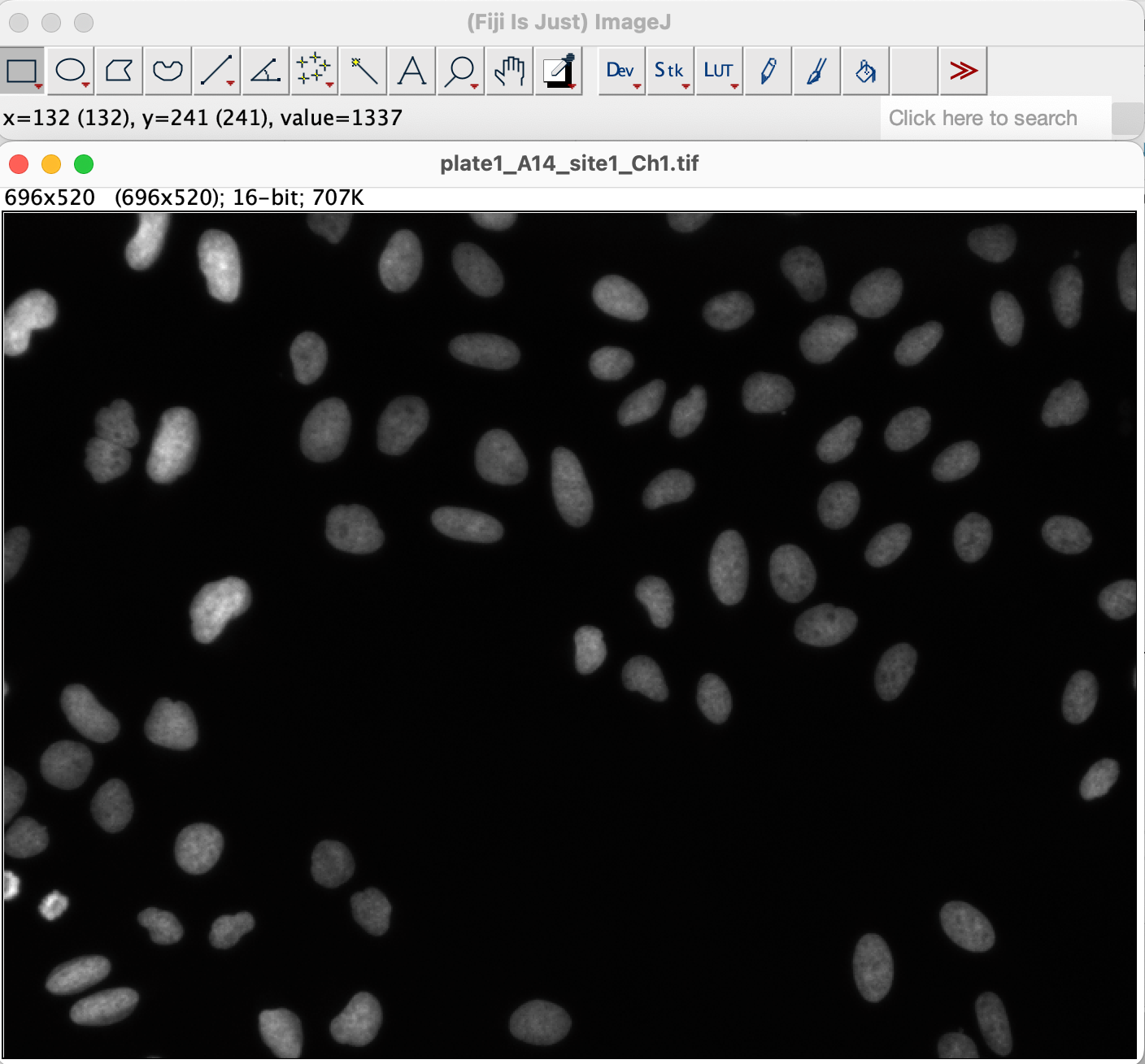
Open the first image in the images_Illum-corrected folder in Fiji. You can do this by going to File > Open... and navigating to the image location, or by dragging and dropping the image file into the Fiji window.
Explore image properties#
Hover your mouse over the image and notice the x, y coordinates and the pixel value being reported in the status bar at the bottom of the Fiji window.
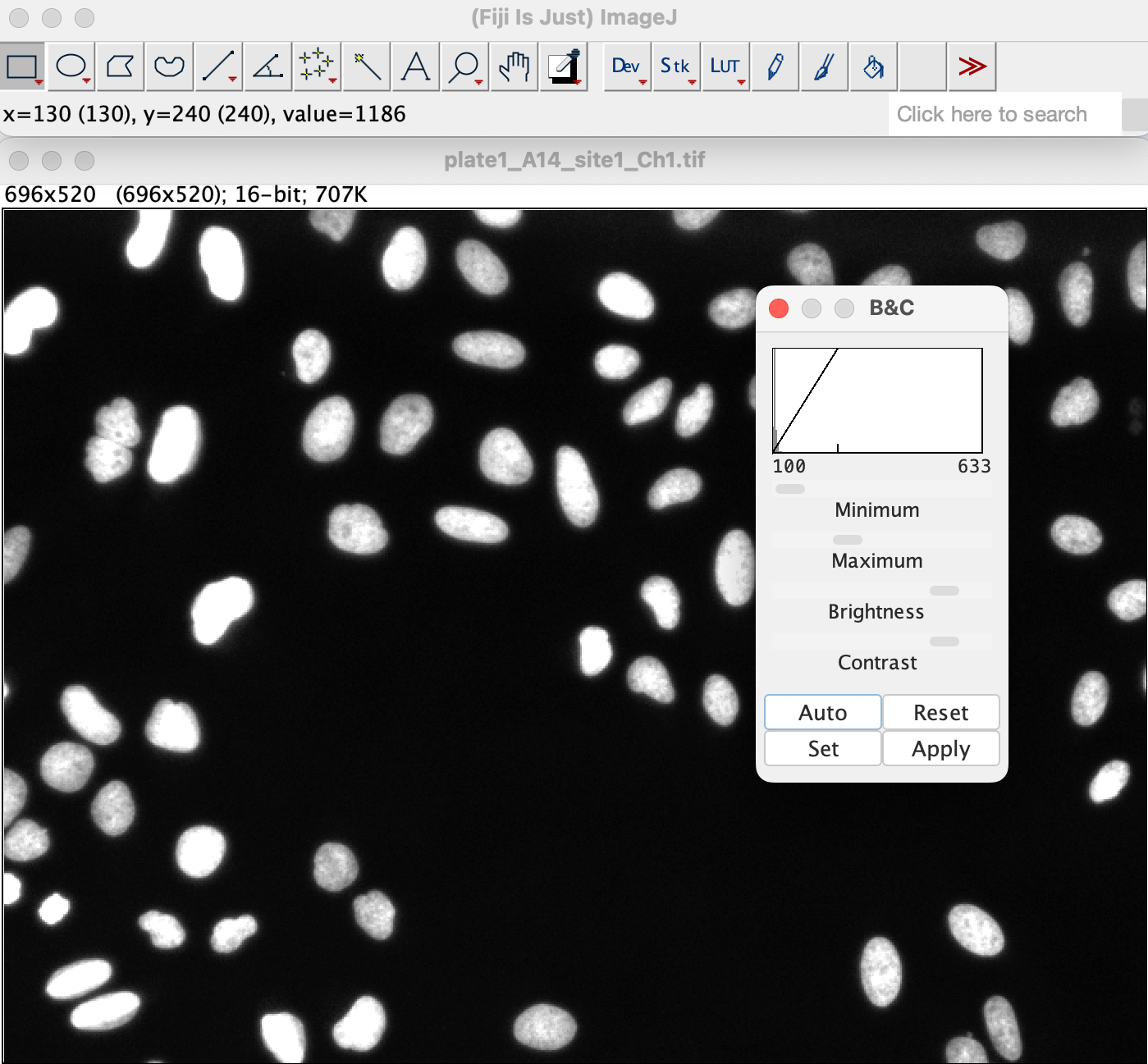
Adjust the contrast of the image by going to Image > Adjust > Brightness/Contrast... (or pressing Shift + C). In the Brightness/Contrast window, click Auto to automatically adjust the contrast. You can also manually adjust the sliders to change the brightness and contrast of the image. Look at the pixel values in the status bar as you adjust the contrast.
Click Apply in the Brightness/Contrast window and look at the pixel values again. How have they changed?
Close the image (without saving changes) and open it again. Change the bit depth by going to Image > Type > 8-bit. Look at the pixel values in the status bar again. How have they changed?
Explore Look Up Tables (LUTs)#
Change the LUT of the image by going to Image > Lookup Tables and selecting a different LUT. Try a number of different LUTs.
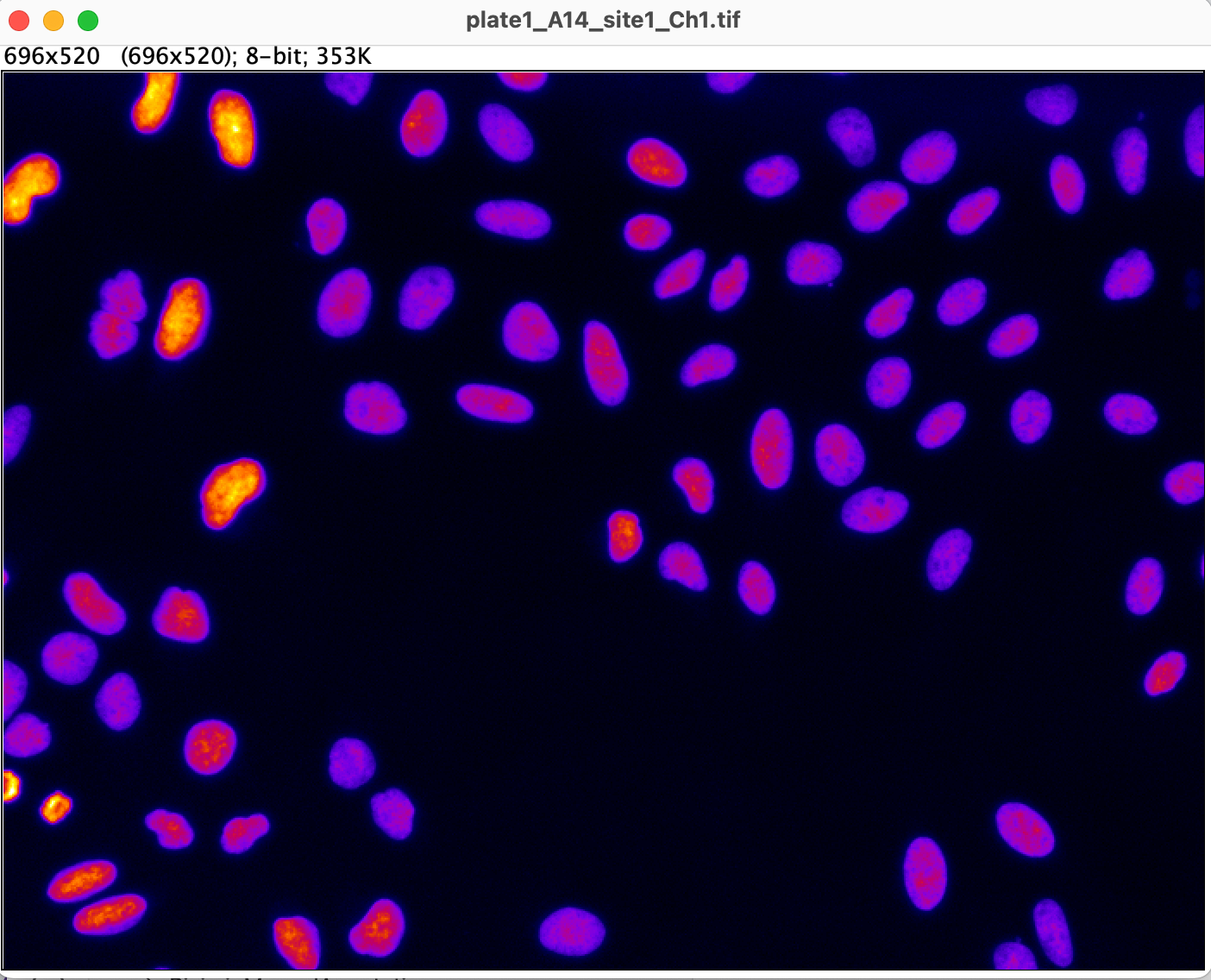
How does this change the appearance of the image?
Does it change the pixel values reported in the status bar?
Are there any LUTs that make it easier to see differences in nuclei intensities in the image?
Are there any LUTs that make it harder to see differences in nuclei intensities in the image? (hint: try
Blue)
Tip
Some colormaps are explicitly good for linear information, and some not! A good introduction to colormaps can be found here. Are there any in Fiji you wouldn’t use for an image? Do any make especially pretty pictures?
Explore filters#
Return your image to the default LUT by going to Image > Lookup Tables > Grays.
Explore some of the filters available in Fiji by going to Process > Filters and selecting a filter to apply to the image. See how the filter changes the appearance of the image. See if it pixel affects intensities.
Hint: You can undo filter applications by going to Edit > Undo or pressing Ctrl + Z (or Cmd + Z on Mac).